Why Your SVG Exports Look Blurry: 8 Pitfalls Tested One by One
SVG is supposed to be lossless, yet the complaints never stop: the exported PNG is blurry, the dimensions don't match, the text changed, the Chinese turned into tofu blocks.
These complaints all share one trait — nobody ever blames SVG itself; it's always "some software is broken." So I decided to be that software for a day.
Using three completely independent SVG rasterizers (headless Chromium, resvg, cairosvg), I turned 8 common pitfalls into minimal repros, each measured down to specific pixels and bytes.
The conclusion up front:
- The three most common causes: the target machine doesn't have the font (fallback, and you never noticed the text width changed); the export is missing a viewBox (content doesn't scale with it); and only 1x was exported (the screen is 2x). These three account for most of the feedback I see.
- The fastest way to localize the problem: drag the SVG into a browser window and check whether the rendered proportions match the design; then delete
width/heightfrom the root element, leaving onlyviewBox, and look again — wrong proportions mean the units or the viewBox are at fault; correct proportions with fuzzy edges mean DPR or fonts are at fault. - One counterintuitive truth: the SVG file itself almost never "goes blurry." The blur always happens at the rasterization step — or the tool simply doesn't support some feature in your file, and doesn't report an error.
Below, pitfall by pitfall. Each one follows: symptom → root cause → minimal repro → fix.
The 30-Second Self-Check
Tick these off in order; whichever one hits is basically your culprit:
- [ ] Does the SVG root element have a
viewBox? (width/heightpresent but noviewBox= content won't scale) - [ ] Are
width/heightinpxorpt? (ptgets converted at 1.333) - [ ] Does the exported PNG's pixel size equal the logical size × screen DPR?
- [ ] Does the file contain
<text>? Is the font it uses installed on the target machine? - [ ] Does the file contain
<filter>ormix-blend-mode? Does the export tool support it? - [ ] Are colors using 8-digit hex (
#RRGGBBAA) orhsl()? - [ ] Do the coordinates of 1px strokes land on integers or half-integers?
- [ ] Does the file embed an
<image>(bitmap)? And is that bitmap itself low resolution?
Missing viewBox: Content Doesn't Scale (and Behaves Differently Depending on How It's Embedded)
Symptom: you put the SVG on a web page, set the size to 2x, and the graphic doesn't get bigger — it just drifts. Or the export dimensions mysteriously don't match.
Root cause: viewBox defines the "user coordinate system → viewport" mapping. Without it, user units = CSS pixels, and scaling the viewport doesn't scale the content.
Minimal repro (two files differing by a single attribute):
<svg xmlns="http://www.w3.org/2000/svg" width="200" height="100" viewBox="0 0 200 100">
  <rect x="20" y="20" width="40" height="40" fill="#ff0000"/>
</svg>
I inlined it into HTML, forced width:400px;height:200px with CSS, and measured the pixel bounding box of the red square:
| Embedding | With viewBox | Without viewBox |
|---|---|---|
| Inline + CSS sizing | (40,40)–(119,119), scaled 2× | (20,20)–(59,59), no scaling at all |
<img src> fixed size | (40,40)–(119,119) | (40,40)–(119,119) |
resvg fitTo:width=400 | (40,40)–(119,119) | (40,40)–(119,119) |
cairosvg output_width=400 | (40,40)–(119,119) | (40,40)–(119,119) |
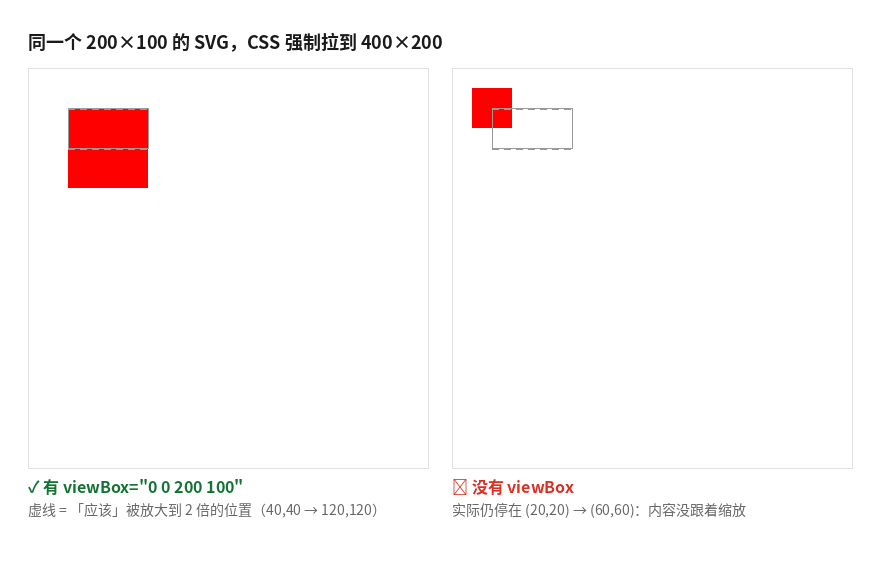
Look at the second row — same browser, same file, just switched to an <img> tag, and the two versions flip results. So problems like "it's fine locally but misaligned in production" often have their root in how the SVG is embedded, not in the file.
Fix: give every SVG a viewBox, and write width/height only in px. If you want to control display size, leave it to CSS — don't go editing the numbers in the SVG attributes.
px and pt Mixed Up: Dimensions Off by 33% Out of Nowhere
Symptom: the design is 600×400, but the exported PNG comes out 800×533 — or the other way around, a third too small.
Root cause: 1pt = 1/72 inch, 1 CSS px = 1/96 inch, so 1pt = 1.333px. Tools like Illustrator and InDesign work at 72dpi by default, while browsers work at 96dpi.
Minimal repro (an Illustrator-style artboard):
<svg xmlns="http://www.w3.org/2000/svg" width="600pt" height="400pt" viewBox="0 0 600 400">
  <rect width="600" height="400" fill="#00aa55"/>
</svg>
The same file, five rendering results:
| Tool | Output size |
|---|---|
| Chromium (browser, 96dpi CSS) | 800 × 533 |
| resvg natural size, dpi=96 | 800 × 533 |
| resvg natural size, dpi=72 | 600 × 400 |
| cairosvg natural size, dpi=96 | 800 × 533 |
| cairosvg natural size, dpi=72 | 600 × 400 |
800 / 600 = 1.3333, exactly 33.3%. Switch tools and you switch sizes, because how many px a pt becomes depends on the dpi the tool assumes.
Fix: convert everything to px when exporting (tick "Convert to px" in Illustrator's export panel), or better, don't put absolute units in the SVG at all — write only viewBox and let CSS handle size.
1x vs 2x: You Think You Exported It, But You Didn't
Symptom: icons from the design look rough when enlarged, and PNGs look fuzzy on the web.
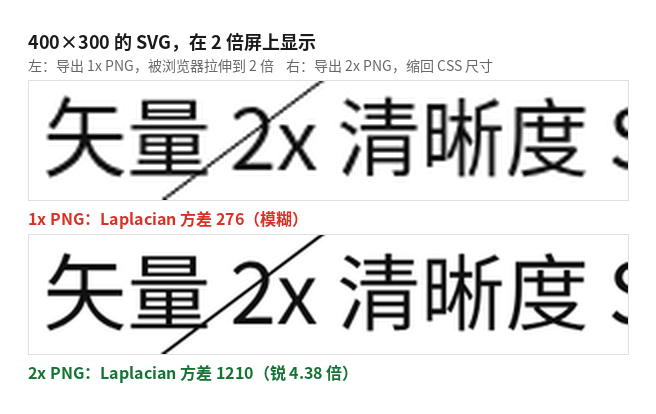
Root cause: a 1x PNG maps 1 pixel to 1 CSS pixel. On a 2x screen the browser has to stretch it to 2x, which is guaranteed blur.
I exported a 400×300 SVG (with 45° diagonal lines, circles and Chinese text) at different DPRs:
| DPR | Output pixels | PNG size | Grayscale levels |
|---|---|---|---|
| 1x | 400 × 300 | 8,792 B | 232 |
| 2x | 800 × 600 | 18,698 B (2.13×) | 241 |
| 3x | 1,200 × 900 | 31,230 B (3.55×) | 248 |
How do you quantify "blurry"? I used Laplacian variance (higher = sharper edges):
- 1x PNG stretched by the browser to 800×600 → variance 276.0
- 2x PNG native at 800×600 → variance 1210.1
- 2x is 4.38× sharper than 1x, for only 2.13× the file size.
Fix: export 2x for ordinary web pages, and 3x if Retina displays are the main target. Trading size for clarity is worth it. As for design decisions like "how big should the icon be," you can also lay the artwork out in the VectorCraft web app and export from there — less hassle than fixing it afterwards.
Text Not Outlined: The Text Is There, But It's Not the Same Text
Symptom: the SVG clearly contains a line of text, but on a colleague's computer it renders in a different font with a different width; worse, the Chinese turns into tofu blocks.
Root cause: <text> in SVG is just a request: "please render this with font X." The font file doesn't travel with the SVG — unless you outline it yourself (convert it to paths).
I took the same string 矢量图形 Vector 123 (font-size 40, a mixed Chinese/Latin string) and measured the ink width:
| Condition | Ink width | Relative to baseline |
|---|---|---|
Chromium + Noto Sans CJK SC (installed here) | 359 px | baseline |
Chromium + SuperFancyDisplay (not installed → fallback) | 341 px | −5.0% |
Chromium + Noto Sans Mono CJK SC | 376 px | +4.7% |
resvg, fed only DejaVuSans.ttf (no Chinese) | 323 px | Chinese becomes 4 tofu blocks |
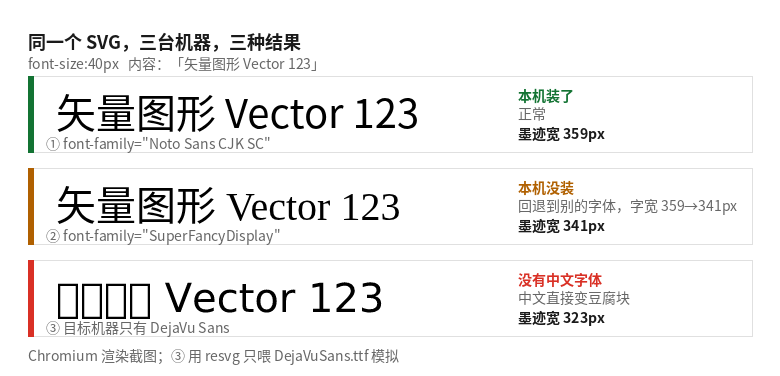
The fallback font differs by only 5% — invisible to the eye — but if that text is centered or right-aligned, the layout has already broken.
I also measured the cost of outlining: for the same sentence, live text is 259 B, outlined is 7,727 B — 29.83×, 7,468 bytes more. The outlined version renders 361 px wide on a machine with only DejaVu, with Chinese intact — while the live-text version gives tofu blocks.
Fix: it depends on the use case. External delivery, cross-machine transfer, or long-term archiving → outline it. Laying text out on a web page, where it must be searchable and selectable → keep live text, but confirm the fonts on the target machine, or just embed the font (@font-face + base64, mind the size).
transform and Coordinates: Content Flies Off the Canvas, or Quietly Shifts
Three specific pitfalls:
① Content outside the viewBox gets clipped. A 200×200 canvas with a 100×100 square starting at (150,150) — after export only 50×50 remains, half of it gone. "A chunk is missing after export" is usually this.
② rotate() rotates around the origin, not the shape's center. A 100×20 bar starting at (0,0) with transform="rotate(45)" ends up with a bbox of x 0..69 / y 1..83 — the whole thing swings out. In AI-generated SVGs transform is everywhere, so this one is especially common.
③ What really makes AI-generated images "blurry" is the embedded bitmap. Many "SVGs" are actually a PNG wrapped in <image>. I made two files: one embedding a 12×12 PNG, one embedding a 48×48 PNG, both displayed at 48×48:
| Embedded bitmap native size | File size | Laplacian variance |
|---|---|---|
| 12 × 12 | 423 B | 56.6 |
| 48 × 48 | 807 B | 2980.4 |
A 52.7× difference in sharpness. An SVG claims to be vector, but the embedded bitmap part stays at exactly that sharpness forever — no matter how far you zoom in, it's interpolation.
Fix: before exporting, search the file for <image> and base64; if present, either switch to a true vector source or don't enlarge it. For coordinate problems, confirm at export time that "the content falls entirely inside the viewBox."
Gradients, Filters, Blend Modes: Some Tools Just Don't Support Them, and Don't Say So
The same SVG, three tools, and the results are three different worlds:
| Feature | Chromium | resvg | cairosvg |
|---|---|---|---|
| Linear gradient (both gradientUnits) | OK | OK | OK |
feGaussianBlur | OK | OK | no blur at all |
feDropShadow | OK | OK | shadow just disappears |
mix-blend-mode (CSS style form) | OK | OK | no blending |
mix-blend-mode (SVG presentation attribute form) | no blending | no blending | no blending |
A few specific numbers:
- The horizontal grayscale profile at x=30 for
feGaussianBlur(stdDeviation=4): Chromium gives a smooth139 → 116 → 93transition, resvg gives139 → 116 → 95, and cairosvg jumps straight from 255 to 0 — a hard edge. - Dark pixels produced by
feDropShadow: 1,486 in Chromium, 1,476 in resvg, 1,272 in cairosvg (that's just the circle itself; the shadow isn't there at all). - Blend modes: red
#ff0000over gray#808080, multiply, should give(128,0,0). Chromium gives(128,0,0)with either a<style>block or astyle="..."attribute; written as the SVG presentation attributemix-blend-mode="multiply"it gives(128,128,128)— i.e. no blending at all. cairosvg blends in neither form.
Two counterintuitive conclusions:
mix-blend-modemust be written as a CSSstyleattribute or inside a<style>block, never as an SVG presentation attribute. Both Chromium and resvg behave this way.- cairosvg silently drops filters and blend modes. It doesn't error; it just quietly erases shadows and blending. If you batch-convert SVGs to PNG in Python, the drop shadows on your icons will all vanish — with no log message.
Fix: open the result in a browser before delivery (browsers are currently the best-supported reference implementation); don't just trust the script output. If you must use a script tool, validate it first against a test image with filters.
Color Formats: The More Modern the Syntax, the Easier It Turns Black Somewhere
I tested 11 color syntaxes, sampling the center pixel on both white and black backgrounds:
| Syntax | Chromium | resvg | cairosvg |
|---|---|---|---|
#ff0000 / #f00 / rgb(255,0,0) / red / currentColor | ✅ | ✅ | ✅ |
#ff000080 (8-digit hex with alpha) | ✅ (255,127,127) | ✅ (255,127,127) | ❌ (255,0,0), alpha dropped |
rgba(255,0,0,0.5) | ✅ (255,127,127) | ✅ (255,128,128) | ✅ (255,127,127) |
fill-opacity="0.5" | ✅ (255,128,128) | ✅ (255,127,127) | ✅ (255,127,127) |
rgb(255 0 0 / 50%) (CSS4 space syntax) | ✅ (255,128,128) | ❌ (0,0,0), turns black | ❌ throws ValueError and crashes |
hsl(0,100%,50%) / hsl(120,100%,50%) | ✅ | ✅ | ❌ (0,0,0), turns black |
hsla(120,100%,50%,0.5) | ✅ (127,255,127) | ✅ (128,255,128) | ❌ (0,0,0), turns black |
oklch(70% 0.15 145) | ✅ (91,182,97) | ❌ (0,0,0) | ❌ (0,0,0) |
Two points worth remembering:
hsl()renders as pure black in cairosvg — not "unsupported," but "here's a wrong color for you," which is far harder to track down than an error.- For the same 50% translucency, Chromium and resvg even round in opposite directions: with
rgba()Chromium gives 127 and resvg 128; withfill-opacityChromium gives 128 and resvg 127. The difference is only 1/255 and invisible to the eye, but in pixel-level diffs or screenshot regression tests it will make you misjudge.
Fix: use #RRGGBB or rgb()/rgba() for colors. 8-digit hex with alpha is handy, but confirm the target tool understands it first. Handle translucency consistently via fill-opacity or opacity; don't mix approaches.
0.5px Strokes: Integer Coordinates Are Actually Blurrier at 1x
Symptom: a 1px line looks grayish and fuzzy.
Root cause: rasterization can only draw on whole pixels. A 1px line sitting exactly on a pixel boundary gets split across two rows, each covering half.
I drew two identical 1px black lines (stroke-width:1), changing only the y coordinate, and took the grayscale profile at 1x:
| Line position | Actual landing | Grayscale |
|---|---|---|
y=30 (integer) | spans 2 rows | 128 / 127 → blurred into 2px |
y=60.5 (half pixel) | occupies only 1 row | 0 / 255 → crisp 1px |
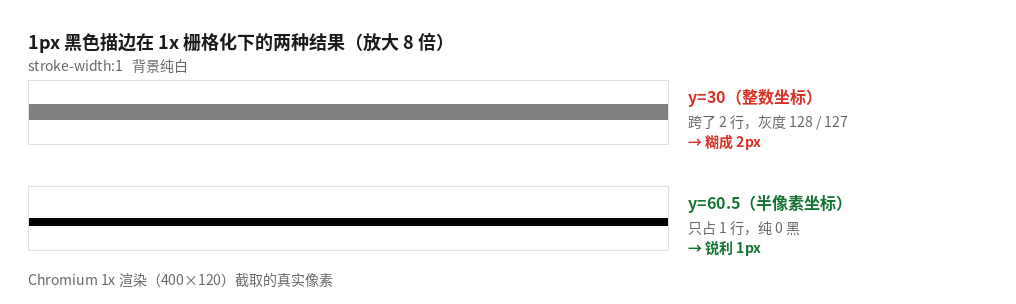
But note the catch: this is a 1x conclusion. I re-measured at 2x — the line at y=30 lands on device rows 59 and 60, both pure 0, so it's crisp too; y=60.5 lands on device rows 120 and 121, equally crisp. So "half-pixel alignment" applies to 1x rasterization; when exporting at 2x, integer coordinates are the aligned ones.
The same goes for rectangles at non-integer coordinates: the left edge of x=10.5 is split into col 10 (gray 127) + col 11 (pure 0), and both edges are blurry.
Fix: don't hand-tune 0.5px offsets. Align coordinates to the target DPR at export time, or — easier still — don't rasterize. Put the SVG straight on the web page, let the browser render at the actual DPR, and vectors stay sharp at any scale.
When Not to Wrestle With SVG Yourself
Of the 8 pitfalls above, several are expensive to diagnose: viewBox, pt/px, DPR multiplication, filter support, font fallback… If you need batch conversion or automated image generation, hand-tuning parameters quickly gets out of control.
At that point the better trade is: hand "vector editing" itself to a tool, and leave "troubleshooting" to this checklist.
My own division of labor looks like this:
- You need to design, revise, or export a whole set of sizes → use VectorCraft's web app; the viewBox, pt/px and DPR pitfalls above are hard to fall into at the source.
- You already have an SVG and just want to convert format / change size → run through the checklist in this article first, confirm the problem isn't the file itself, then pick a tool.
- You need pixel-level regression testing → don't use cairosvg; it silently drops filters. resvg or a browser are both more reliable.
- You need batch image output → a dedicated vector tool is less work; VectorCraft's web app runs right in the browser.
A note on performance, too. I tested a 1000×1000 SVG with 2000 paths over three rounds:
| Tool | Single render time | End-to-end (incl. process start) |
|---|---|---|
| Chromium (warm browser, median of 10) | 68 ms | 1.50–1.54 s |
| resvg | median 107.9 ms | 0.15–0.17 s |
| cairosvg | median 150.7 ms | 0.27 s |
A warm browser is actually the fastest (Skia is quick), but process startup is the bottleneck — when converting thousands of files in a batch, resvg's one-process-per-file shape has the lower total cost.
Final Thoughts
SVG doesn't go blurry. It's always the rasterization step that blurs, and that step has far too many mutually different implementations.
All 8 pitfalls are measured, not one copied from documentation. I also got to know the temperament of each of the three tools:
- Browser (Chromium): the most complete support, but
mix-blend-modemust use the CSSstyleform — it rejects the presentation-attribute form. - resvg: closest to browser behavior; filters and blend modes all work, and batch performance is good. But CSS4
rgb(0 0 0 / 50%)andoklch()silently turn black in it. - cairosvg: the one most likely to fail without a sound — filters gone, blending gone,
hsl()black, 8-digit hex alpha gone. And it never reports an error.
So next time you hit "the SVG export is wrong," don't rush to switch design software. Open the source file and look at three things first: does the root element have a viewBox, is there any <text>, is there any <filter>. Eight out of ten problems can be localized with just those three.
Sources and notes
- Test environment: Linux (aarch64), headless Chromium (
--headless, SwiftShader software rendering), resvg (@resvg/resvg-js), cairosvg 2.9.1; the system has 109 Chinese fonts installed, including Noto Sans CJK SC, Noto Sans Mono CJK SC, AR PL UMing CN and others - All numbers in this article come from the output of actual commands; the images are screenshots of real rendering results, unretouched
- Not verified on this machine: the actual behavior of Inkscape, librsvg (rsvg-convert) and ImageMagick — none are installed here, so the cross-tool comparison only covers the three above
- The "target machine" for the font tests was simulated by restricting resvg's font set (feeding it only
DejaVuSans.ttf), not by actually switching machines - I covered the overall positioning of several of the tools mentioned above in 13 free Adobe alternatives; the PhotoCraft hands-on post also ran into the same "font fallback" pitfall — a PSD missing its fonts, and the layout broke outright. The font pitfall is shared between the vector side and the bitmap side.
- This article is technical troubleshooting only and is not a recommendation or endorsement of any software