Edit PDFs Without Installing Anything: PdfCraft's Real Limits, Tested
Search for "merge PDF," "split PDF" or "watermark PDF" and you get a row of little online tools: upload, click, download. They work — but every upload means your contracts, ID scans and offer letters pass through somebody else's server first.
So I downloaded PdfCraft, the Acrobat competitor in the ArtCraft family, and ran the official web build in a browser to settle one question: which PDF tasks really can be done "without installing software and without uploading files," and which ones actually cannot.
Verdict up front: merging, splitting, annotating, stamping a visible watermark and filling ordinary forms all work in the web build, with zero install and files never leaving the machine; encryption, password setting, digital signatures, scanned-document OCR and XFA forms should not be used yet; and the Chinese UI in the web build is 100% tofu blocks — something the project itself lists on its roadmap as a pending fix.
1. Split "editing PDFs" into four categories first
Figure out which category you need, because completeness varies enormously between them:
- Read and mark (reading, search, annotation, highlighting): the most mature.
- Rearrange (merge, split, extract pages, reorder): second most mature, and exactly where the "merge PDF" / "split PDF" search terms come from.
- Add material (stamps, signature images, visible watermarks, form filling): usable, but it depends which one.
- Lock down (password protection, permission passwords, digital signatures): the weakest area right now, and the easiest to mistake for "supported."
Every section below gives its verdict within this framework rather than piling up a feature list.
2. How "no install" actually works
The official release includes a pdfcraft-web-0.10.1.zip. Download it, unzip it, serve index.html from any static server and it runs — no runtime to install, no account to register, files never leave your machine. My whole round of testing ran with zero installation.
The layout is easy to read: a column of feature entries on the left, the document in the middle, a toolbar on the right, and a search box at the top (Ctrl+K).
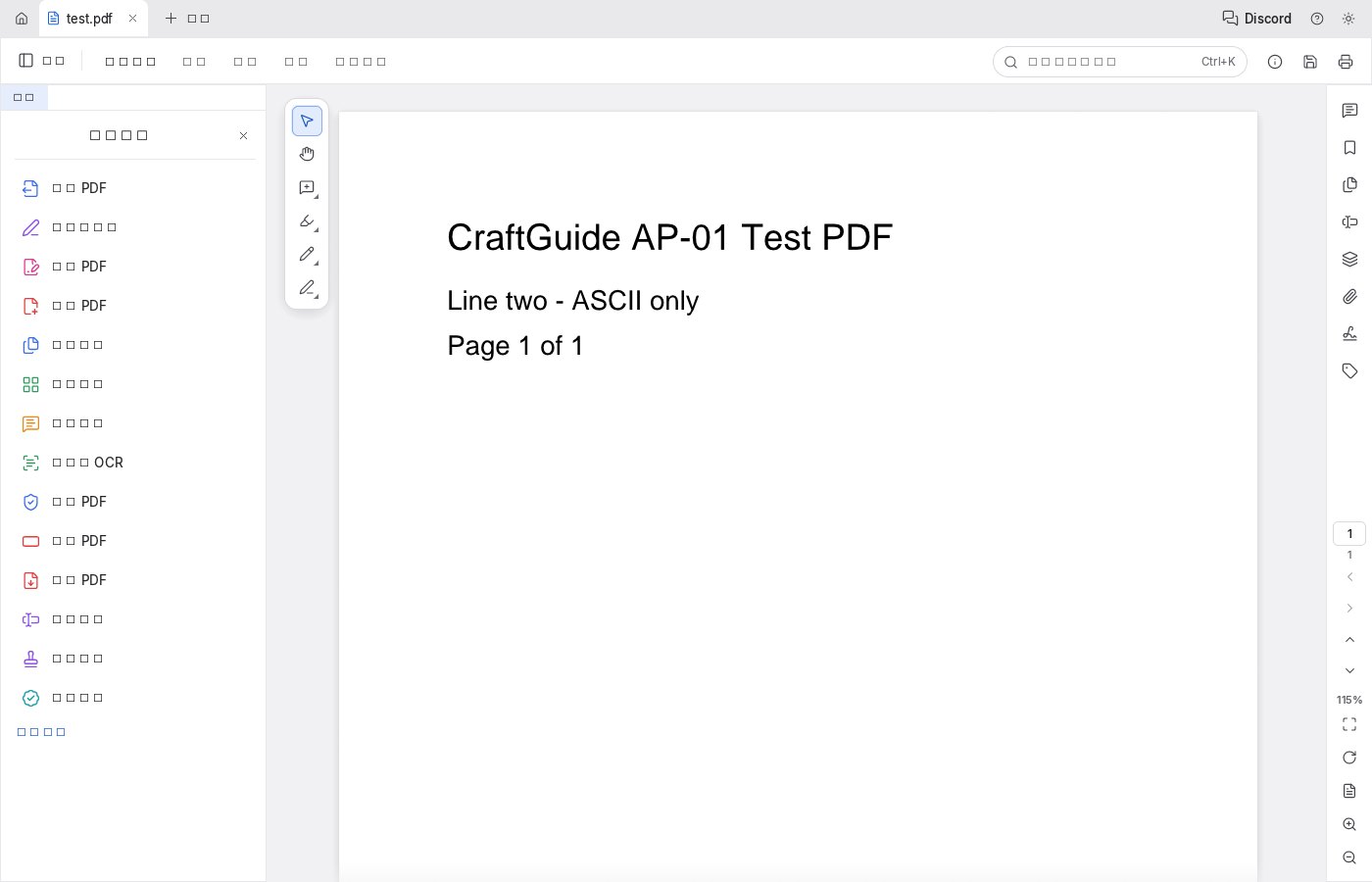
The ?file= parameter documented officially loads a file directly. I used the relative path ?file=test.pdf, the document tab appeared immediately, body text rendered normally, and page 1 / 115% zoom with paging and fullscreen all worked.
Three traps to know in advance:
- Cross-origin will not work. The documentation states that
?file=across origins requires the other side to allow CORS. So "drop the PDF on some cloud-drive link and open it directly" fails for most third-party sites. - Don't start clicking before the download finishes. The docs specifically warn that operating on a file that has not finished downloading opens it in a background tab, which easily looks like a broken UI.
- The first load pulls about 38MB of wasm (about 14MB gzipped), so wait a moment the first time. After that it is a pure static site that works offline.
"Files never leave your machine" deserves its own note
This is not marketing language; it is a direct consequence of the web build's architecture: what you unzip is a pile of static files, and PDF parsing and rendering happen inside your own browser.
When handling contracts, IDs, offers, payslips or your kid's scanned homework, that is a completely different risk exposure from "upload it to some random online tool." You don't have to study a small tool's privacy policy, and you don't have to bet on whether its server will still exist in thirty days.
3. Five tasks, layer by layer
First, the testing boundary: I only ran the main path of "open, render, read the UI" (the screenshot above). I did not click through merge, split or stamping one by one — the UI text is all tofu blocks, so navigation has to be done by icon. What follows is therefore "where the entry point is plus the officially stated capability boundary," not a walkthrough recording. I have collected the usability rating for each task on the hands-on page.
1) Merge: usable
The left sidebar has a dedicated merge entry. Counting them, there are 16 feature entries in total: read PDF, write PDF, merge, split, annotate (pencil / highlight / text box / stamp / signature and so on), tables, forms, OCR, encryption, signatures, accessibility checks and more. Merge and split are the basics of this kind of workbench, and the two things most people search for.
My read: merging two or three documents occasionally into one to send out is fine; for batch merging hundreds of files, clicking through a web UI will be painful — don't force it.
2) Split: usable, but don't expect content extraction
Also a dedicated entry on the left. Merge and split are the fundamentals of such a workbench anyway.
The limit is here: splitting is "reassembling pages," not "extracting structured content." Pulling a table out of a PDF into Excel is the OCR-plus-table-recognition track, which falls in the area the project itself rates as clearly weak.
3) Watermarks: visible watermarks work; "unremovable watermarks" do not
The annotation area has pencil, highlight, text box, stamp and signature tools. My read: if you want a company name laid diagonally across the body, using a text box or stamp-type tool across the page is feasible.
But distinguish two kinds:
- Visible watermark (a stamp, a note saying "for XX use only"): works.
- Unremovable copyright marks or permission watermarks: annotation cannot solve this. It belongs to PDF permission management, which happens to be the area officially rated as weak.
4) Encryption: don't use it yet
This is the point I most want to flag. In the project's own documentation, encrypting a PDF falls into the "not available or very weak" category. In other words, an "encrypt" entry in the UI does not mean it can give you a PDF that is password-protected and genuinely unopenable by others.
If what you need is "add an open password to a file before sending it," keep using whatever you use now and don't deliver with this. If you really want to try, start with a throwaway test file and see whether the other side is actually blocked.
5) Forms: ordinary forms yes, XFA no
There is a dedicated form entry on the left. Ordinary AcroForm (the kind you fill page by page and submit with a button) is not rated weak, so you can try it; XFA dynamic forms (the kind many banks and tax systems use) are officially listed as unavailable or very weak.
4. The most glaring problem: the Chinese UI is 100% tofu blocks
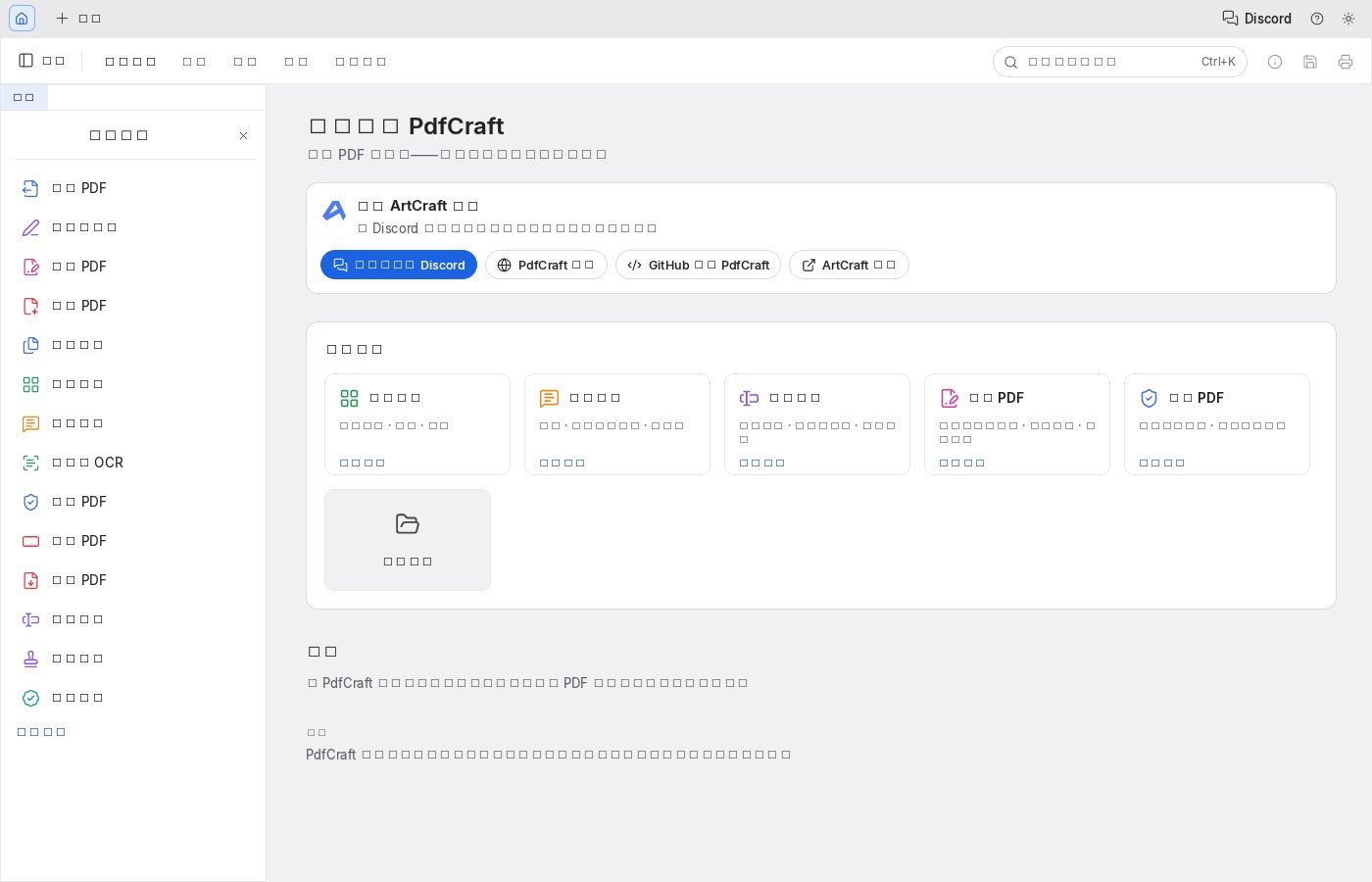
In the screenshot, apart from PDF, Discord, GitHub, ArtCraft, Ctrl+K and 115%, everything is a block (tofu).
My first reaction was also "is my machine missing fonts?", so I ran three checks:
- Rendering ordinary HTML in the same browser, Chinese displays perfectly — Noto Sans CJK SC and AR PL UMing CN both render fine;
- Setting
Accept-Languageto zh-CN and en-US and taking a screenshot each time, the blocks appeared in exactly the same positions in both — nothing to do with locale; - In the roadmap of the official README, "the Chinese interface font" is listed as an item to fix in the next stage.
One level deeper: the fonts embedded in the wasm are only Ubuntu-Light and NotoEmoji-Regular, with no CJK font at all; the Japanese fonts the project provides live in an optional craft-fonts repository and are not included in the release either.
So the conclusion is: the web build ships no Chinese font — it is not your machine. Installing more Chinese fonts locally won't help, so don't waste time on it. This is also flagged in the pitfall notes on the hands-on page, to save you from fiddling with system fonts.
Practical advice: not being able to read the UI doesn't matter. The order of the 16 entries on the left is fixed, so one use is enough to remember the positions; spend a minute matching them against the icons before you start — this job never required reading every word anyway.
If you absolutely cannot accept an English UI, go straight to the desktop route in section 6.
5. Feature coverage is over 90%, but only half of it does real work
The most telling set of numbers in the official parity document — this is what to look at when judging "is this tool good enough yet":
- P0 essential features: 94.2% covered (226 complete plus 23 partial, out of 252)
- Feature breadth: about 67% weighted by layer, 56.9% unweighted (423 complete plus 74 partial, out of 808)
- Genuinely "able to do real work": about 50% of full Acrobat Pro, about 55% of a mainstream professional, about 66% of a beginner user (official weighted estimates)
In plain terms: over 90% of the clickable features are covered, but only about half can actually replace Acrobat for real work.
The official documentation also records its latest re-check, where weighted readiness rose from 49.25 to just 49.7.
So when you wonder "does this feature actually work," don't check whether it appears in a list — check which tier it falls into. Read and mark plus rearrange are broadly usable, add-material depends on the specific type, and the lock-down category should be avoided entirely.
6. When not to use the web build
If any of these apply, don't force it:
- You must have a Chinese UI. The web build cannot provide it; the project admits it is on the roadmap.
- You need encryption, passwords or digital signatures. Rated weak; not for delivery.
- You need OCR on scans, or Office-to-PDF conversion. Explicitly unavailable or very weak.
- You need XFA dynamic forms. Same as above.
- You need prepress-grade quality assurance (PDF/X and similar). That is Preflight's job, and the web build has no such concept.
- You need to process hundreds of files. The UI cannot keep up; batch work has to go through the command line.
- It has to carry a critical step in a production pipeline. The official status is early alpha — matching Acrobat is the direction, not the current level.
7. Alternatives: when something else is easier
I am not going to claim "only PdfCraft can do this." Depending on your situation, other routes are often faster:
- You just want to save a web page or document as PDF: use the browser's "Print → Save as PDF." Zero install, most reliable, don't take a detour.
- You want to stamp a signature or add a few lines to a PDF: built-in tools are often handier — macOS Preview, Windows Paint and Okular on Linux can all add markup.
- You need batch merge, split or encryption: go to the command line. On Linux,
qpdf,pdftkand Ghostscript are usually right there in the system repositories; in Python,pypdfandpikepdfare more flexible. And the command line is where PdfCraft genuinely has an edge — the whole ArtCraft suite has shared one set of commands across GUI, CLI, JSON and MCP from the start, so anything the UI can do, scripts and agents can do too (I wrote about this in the roundup of 13 free Adobe alternatives). - You want a Chinese UI plus stability: install the desktop build. Officially there are AppImage, .deb, .rpm and tar.gz for Linux, pkg for macOS, and a Windows build too; or use the ArtCraft Launcher, which installs with one click, matches your system version automatically and updates everything together later. Whether the desktop build embeds a Chinese font is not stated in the docs and I have not verified it — if a Chinese UI is a hard requirement, confirm before installing.
8. Where to get the tool
I organized this round of testing into a Chinese hands-on page for PdfCraft: the list of 16 feature entries, the usability rating for each task, the pitfalls spelled out in the official docs (tofu Chinese, CORS, background tabs), the sources for the maturity figures, and download entries for every platform — all on one page, so you don't have to dig through the README yourself.
In the same batch I also tested PhotoCraft, with a blunter conclusion: the web builds across this family are good as a "rehearsal stage," not as the main tool for delivery — that hands-on write-up is here.
Sources and notes
- PdfCraft official repository and releases: github.com/storytold/pdfcraft; the version used here is v0.10.1, the official release downloaded on the day of testing, 2026-10-21
- Maturity figures come from the official
docs/target-app-parity.md(document marked Last updated 2026-10-13) - All screenshots were taken from my own machine, unedited; the navigator site and this article are third-party write-ups and are not affiliated with the ArtCraft team
- This article is not a recommendation or guarantee for any software; download from official channels and judge against your own task